Docs / Analysis tab
Ink coverage and cost
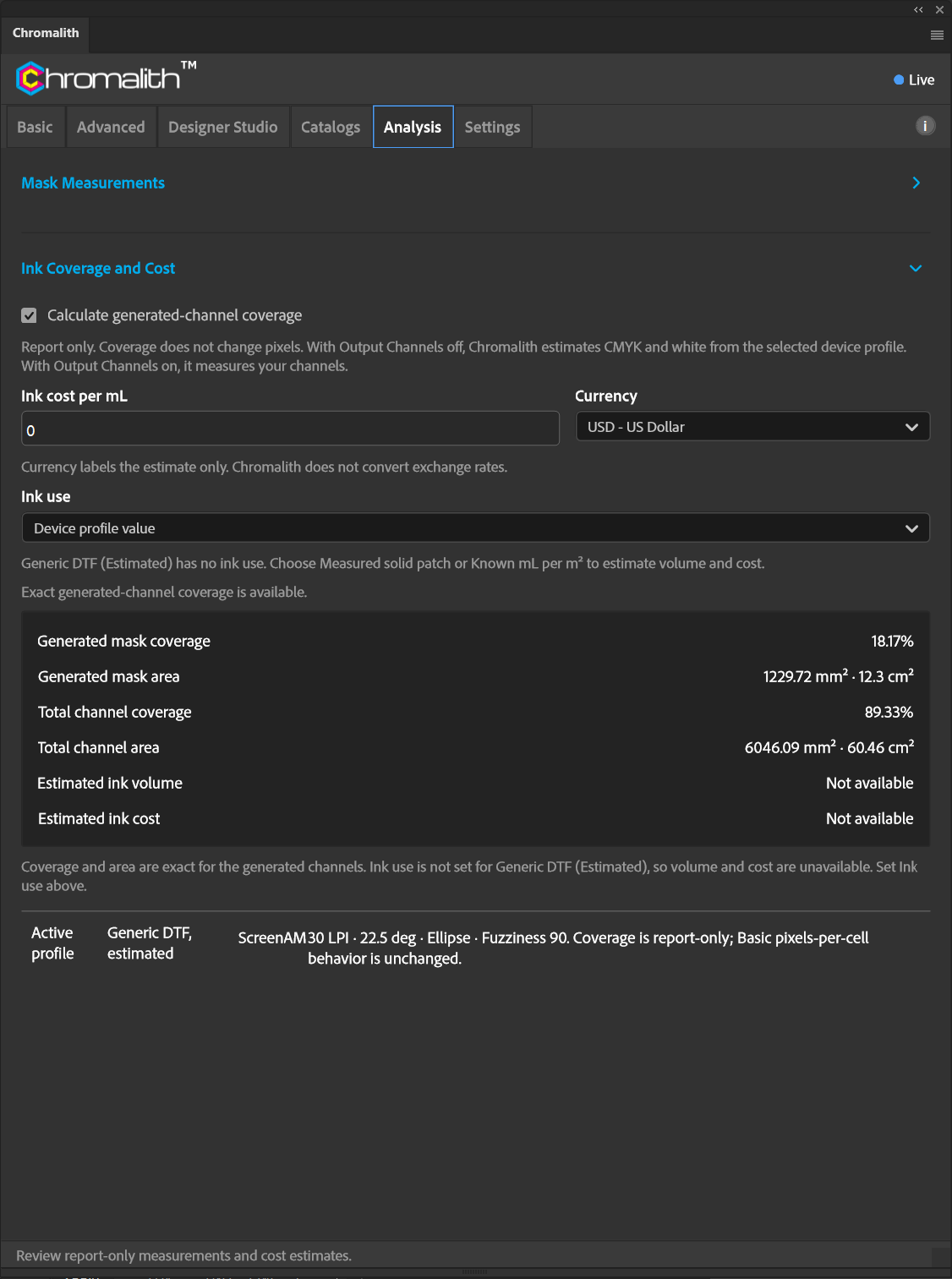
Estimate how much of the film each channel covers and what the ink costs.
Turn on Calculate generated-channel coverage, enter Ink cost per mL, choose a Currency, and run Test Mask.
Set Ink use so Chromalith can turn coverage into volume. Measured solid patch: print a solid 100% patch of one ink, then enter the mL your RIP or printer reports for it and the patch size. Known mL per m²: enter the mL of one ink per m² at 100% coverage.
Device profile value uses the ink-use number stored in the selected device profile. Volume and cost are estimates calculated from that number and the mask's coverage; Chromalith doesn't measure actual ink use. Built-in estimated profiles have no ink-use number: choose Measured solid patch or Known mL per m² and enter your own value.
Chromalith saves Ink use separately for each device profile.
| Readout | Meaning |
|---|---|
| Generated mask coverage / area | Share and area of the knockout mask that prints. |
| Total channel coverage / area | Combined coverage across every ink layer. With Output Channels on, these are your channels. With it off, Chromalith estimates them from the device profile: CMYK from the document color profile, plus white under the artwork for DTF and UV, and for DTG on dark or colored garments. Screen print counts the mask as one layer, because spot colors need Output Channels. |
| Estimated ink volume | Coverage converted to volume with the selected Ink use. Shows Not available until Ink use is set. |
| Estimated ink cost | Estimated volume × your cost per mL. |
Currency only labels the estimate. Chromalith doesn't convert exchange rates. Coverage is report-only and doesn't change pixels.
If coverage is on but no channel is selected, Chromalith asks you to turn on Use for at least one channel in Output Channels, or to turn coverage off.