Docs / Designer Studio
Designer Studio overview
Shape the print and finish its edge in one live workspace. Designer Studio changes the mask, never your artwork pixels.
Turn it on
- On the Advanced tab, turn on Enable Designer Studio. Designer Studio changes now apply to the knockout mask.
- Open the Designer Studio tab. It has two sections: Shape and Edge.
- Run Test Mask (Basic tab) or Test Designer Studio Mask. With Live Testing on, every Designer Studio change updates the preview.
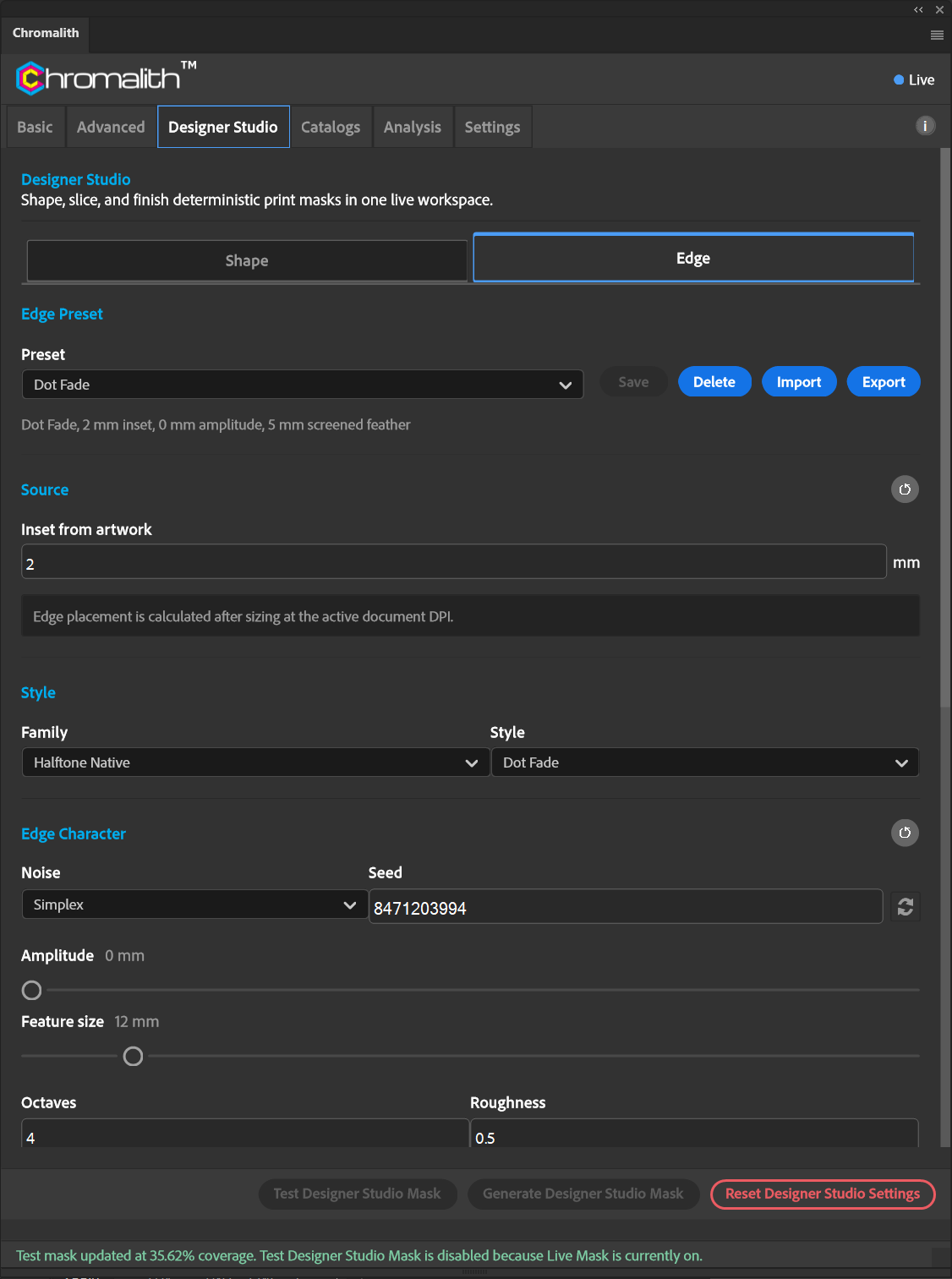
Buttons
| Button | What it does |
|---|---|
| Test Designer Studio Mask | Builds a Designer Studio test tab. Unavailable while a regular live Test Mask is running; the status line tells you. |
| Generate Designer Studio Mask | Writes the Designer Studio mask as its own document. Needs an active license. |
| Reset Designer Studio Settings | Returns shape and edge settings to their defaults. |
Designer Studio shapes in your printed output are yours to sell. The shapes themselves can't be redistributed as a pack. See the EULA.