
Docs / Getting started
Your first separation
From a full-color file to print-ready DTF artwork in about two minutes. This walkthrough uses a transparent PNG and a black T-shirt.
1. Open your artwork
Open the design in Photoshop. Transparent PNG or a layered PSD both work. If the file has no embedded color profile, Photoshop asks what to do; assigning your working RGB profile is the usual choice.
2. Choose the blank
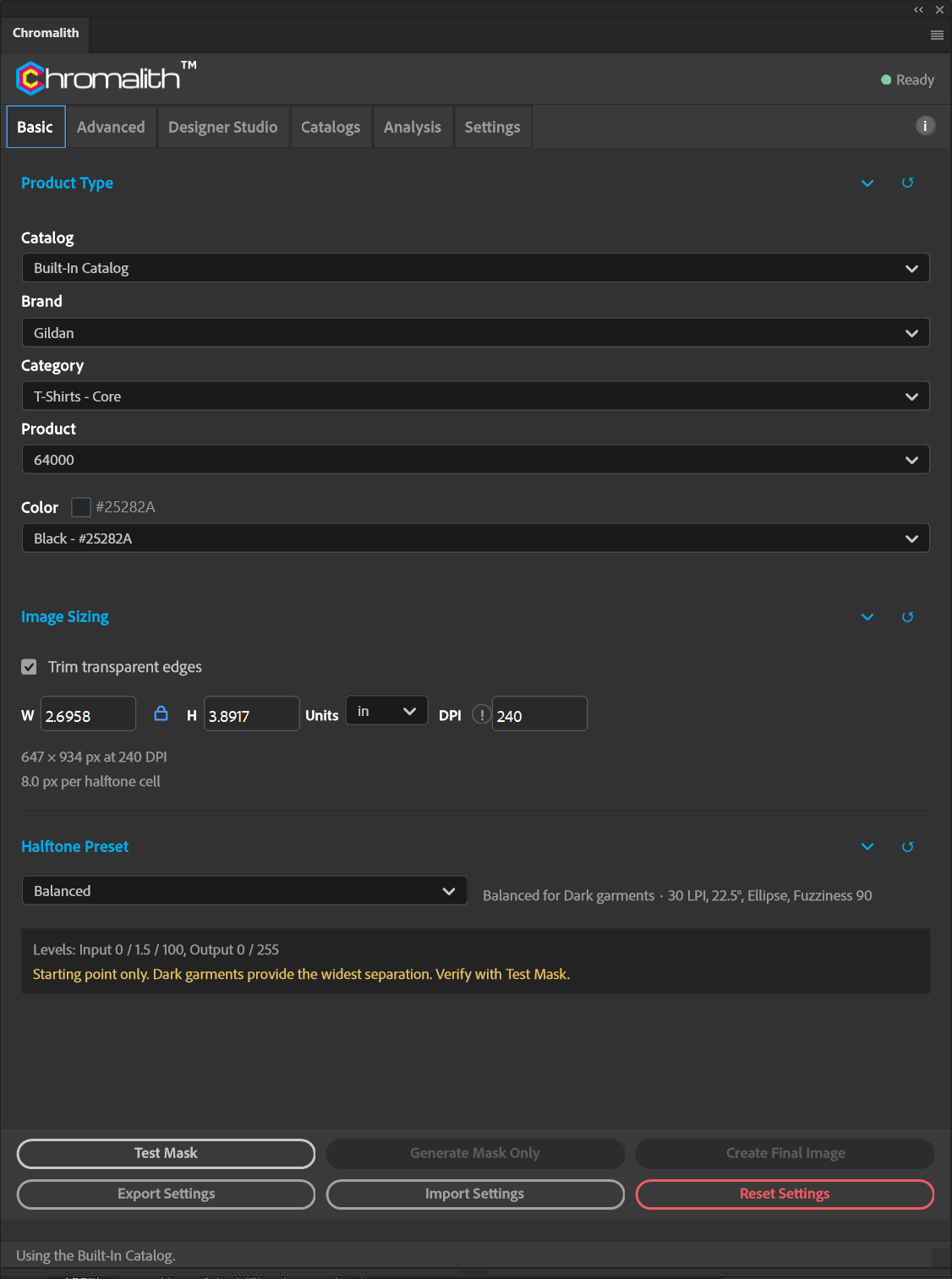
On the Basic tab, under Product Type, choose the catalog, brand, category, product, and color you're printing on. The panel shown here uses Gildan / T-Shirts - Core / 64000 / Black #25282A. The color swatch shows the hex value the knockout will use.
3. Set the print size
Under Image Sizing, enter the printed width or height and the DPI. With the aspect lock on, the other dimension follows. With Trim on, the example artwork measures 2.6958 × 3.8917 in, 647 × 934 px at 240 DPI. The workspace example uses Trim off at the full canvas size of 3.5 × 4.2 in.
If the document is at 72 DPI, Chromalith warns that the screen can't resolve at that size. Raise DPI to at least 240 or lower the LPI.
4. Pick a preset
Under Halftone Preset, start with Balanced. For a black shirt it sets 30 LPI, 22.5°, ellipse dots, and fuzziness 90.
5. Run Test Mask
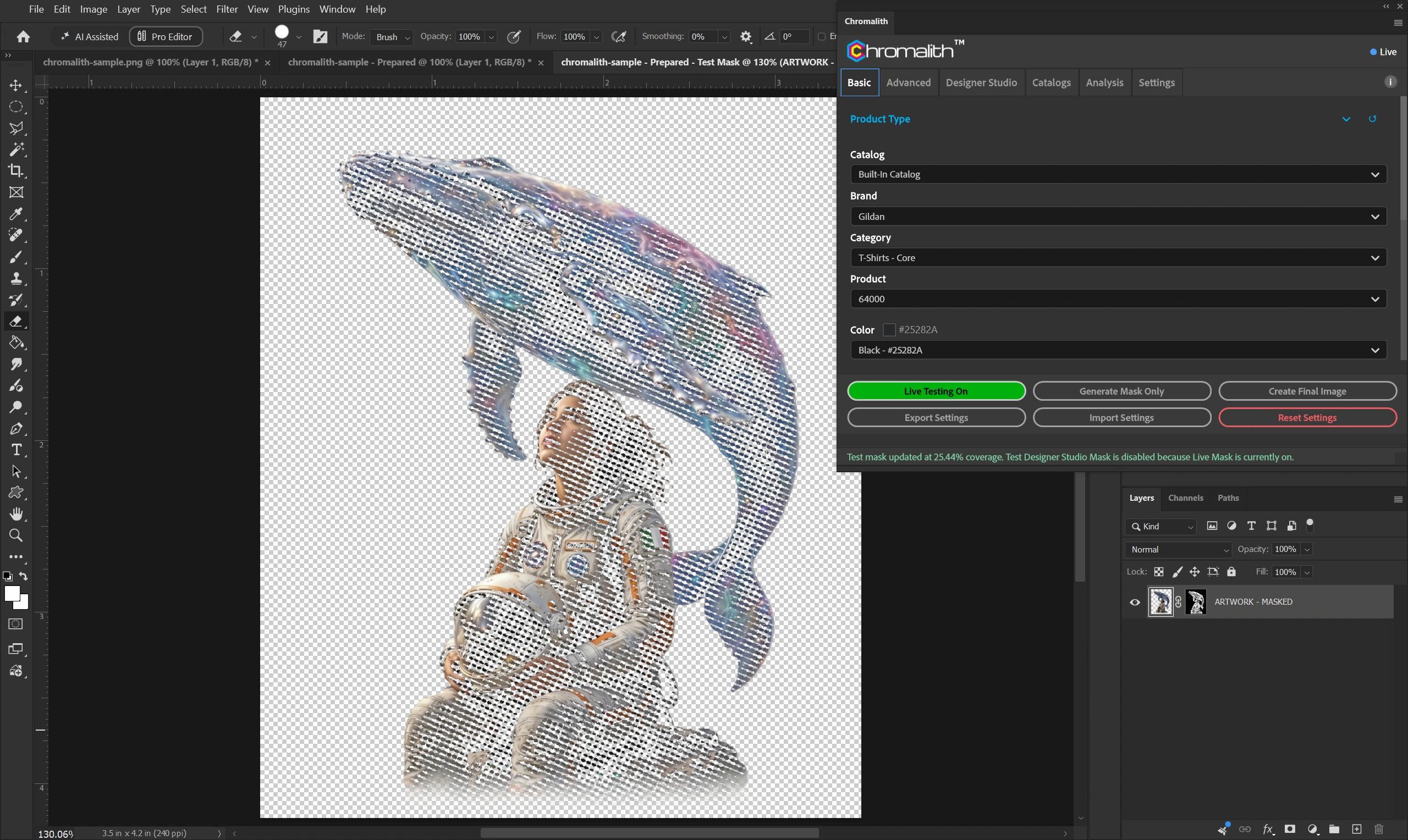
Select Test Mask. Chromalith creates two new documents, Prepared (your art at print size) and Test Mask (the live preview), and the button changes to Live Testing On. Change any setting and the preview updates. The panel header uses the approved Chromalith wordmark with its embedded trademark; Ready/Live stays at the right. Cyan section titles adapt to all four Photoshop themes.
6. Create the final image
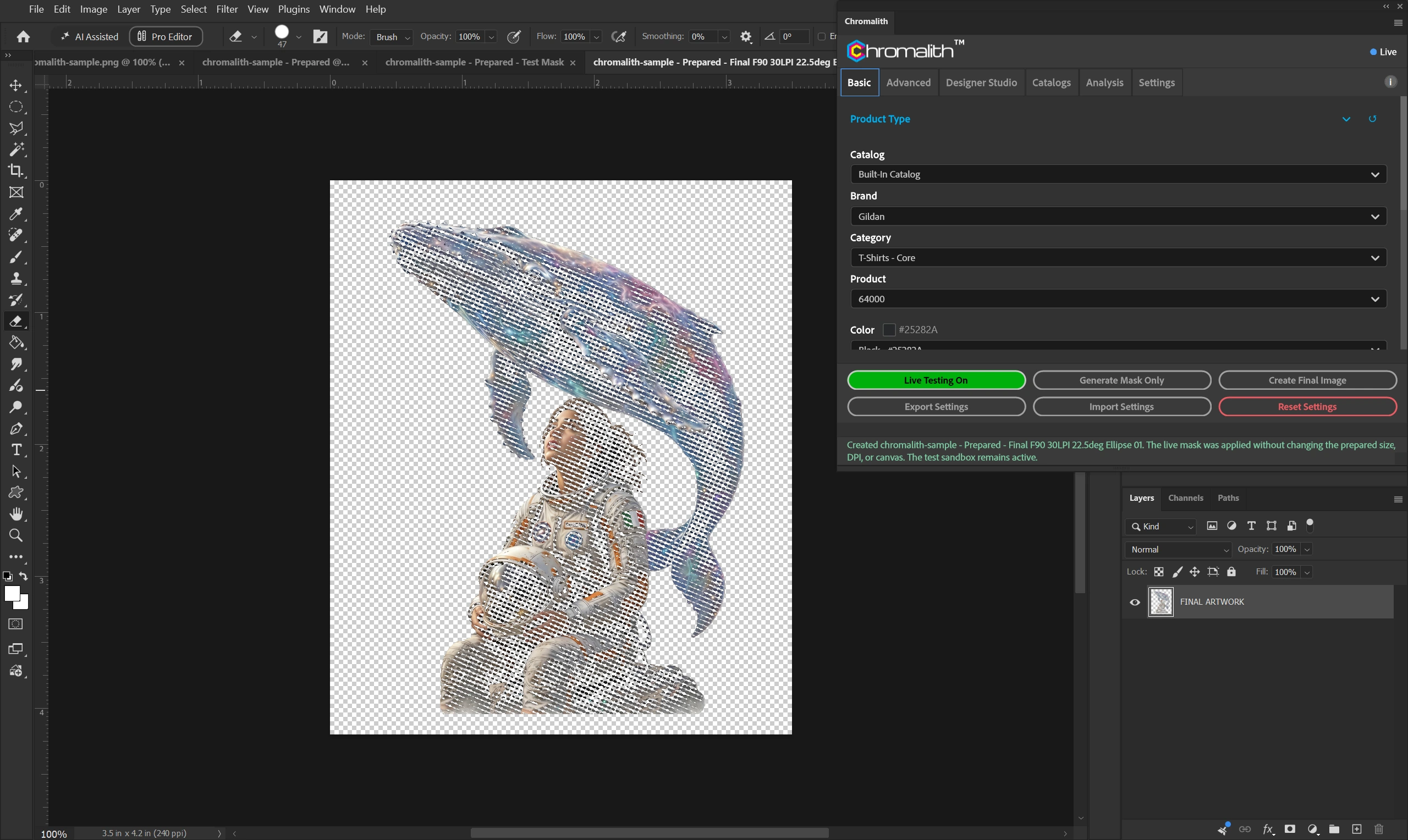
When the preview looks right, select Create Final Image. Chromalith writes a new document named for the settings it used, for example Prepared - Final F90 30LPI 22.5deg Ellipse 01, with a single FINAL ARTWORK layer. Your original file is untouched.
7. Send it to print
Save the final document in the format your RIP or print service asks for, usually PNG with transparency at the DPI you set. Gang sheets and nesting happen in your RIP as usual.
Next: Panel tour to see what each tab does.