
Docs / Getting started
Panel tour
The Chromalith panel has six tabs and a fixed action bar. Most jobs only use Basic.
| Tab | What it's for |
|---|---|
| Basic | Product and color, print size, and halftone preset. Everything an everyday job needs. |
| Advanced | Screen method and dot shape, Levels, output channels, white underbase, choke and spread, cleanup, and export. |
| Designer Studio | Shapes and edge treatments that reshape the mask. |
| Catalogs | Edit the built-in garment catalog or build your own. |
| Analysis | Mask measurements and ink coverage and cost. |
| Settings | License, device profile, Print Limit Test, catalog visibility, edge preset restore, storage, and reset. |
Header
The status dot in the top right reads Ready when Chromalith is idle, Working while it processes, and Live while a Test Mask is active. The i button shows information about the active document.
Sections
Each section has a collapse arrow and a ↺ reset button that restores only that section's defaults. Collapsed state and settings persist between Photoshop sessions.
Action bar
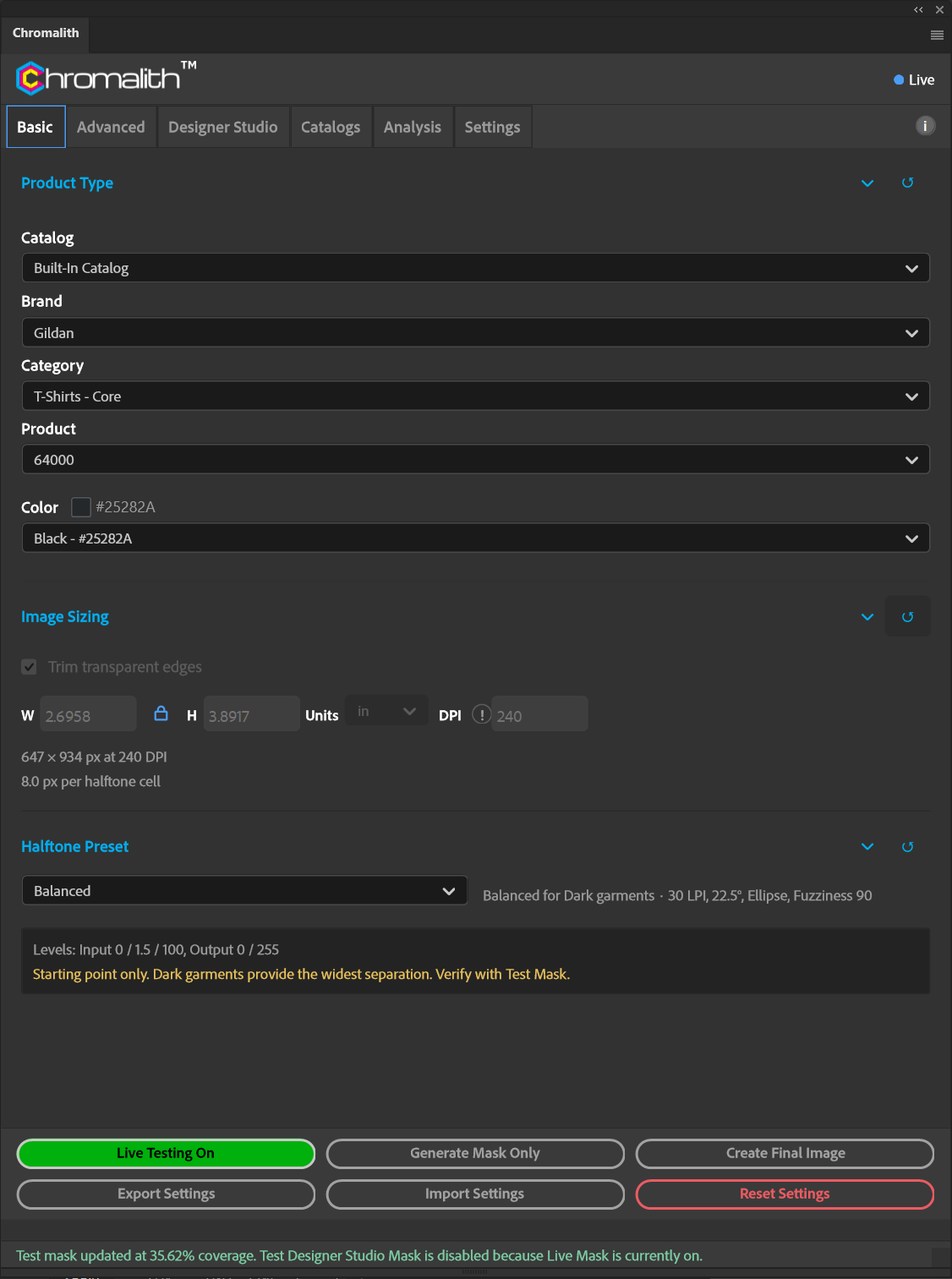
| Button | What it does |
|---|---|
| Test Mask / Live Testing On | Builds the live preview. Select again to turn live testing off. |
| Generate Mask Only | Writes a one-layer mask document from the current live test. Needs an active license. |
| Create Final Image | Applies the live mask to the prepared art and writes the final document. Needs an active license. |
| Export Settings / Import Settings | Save or load every panel setting as a job file. See Job settings. |
| Reset Settings | Returns every section on the panel to its default. |
The status line under the buttons reports what the last action did, including coverage after each Test Mask update.